VECTORA INSTRUCTIONS
Your Complete Guide to Using the AI Detection Terminal
What is VECTORA?
VECTORA is a cutting-edge AI detection platform designed to verify the authenticity of digital content in the post-truth era. It's a neural firewall that helps you identify AI-generated text, images, and documents with high accuracy.
Our project combines three powerful AI providers (Google Gemini, Groq, and Cerebras) to give you the most comprehensive analysis possible. Whether you're checking a news article, verifying an image's authenticity, or analyzing a PDF document, VECTORA has you covered.
Step-by-Step Guide to Using the Checker
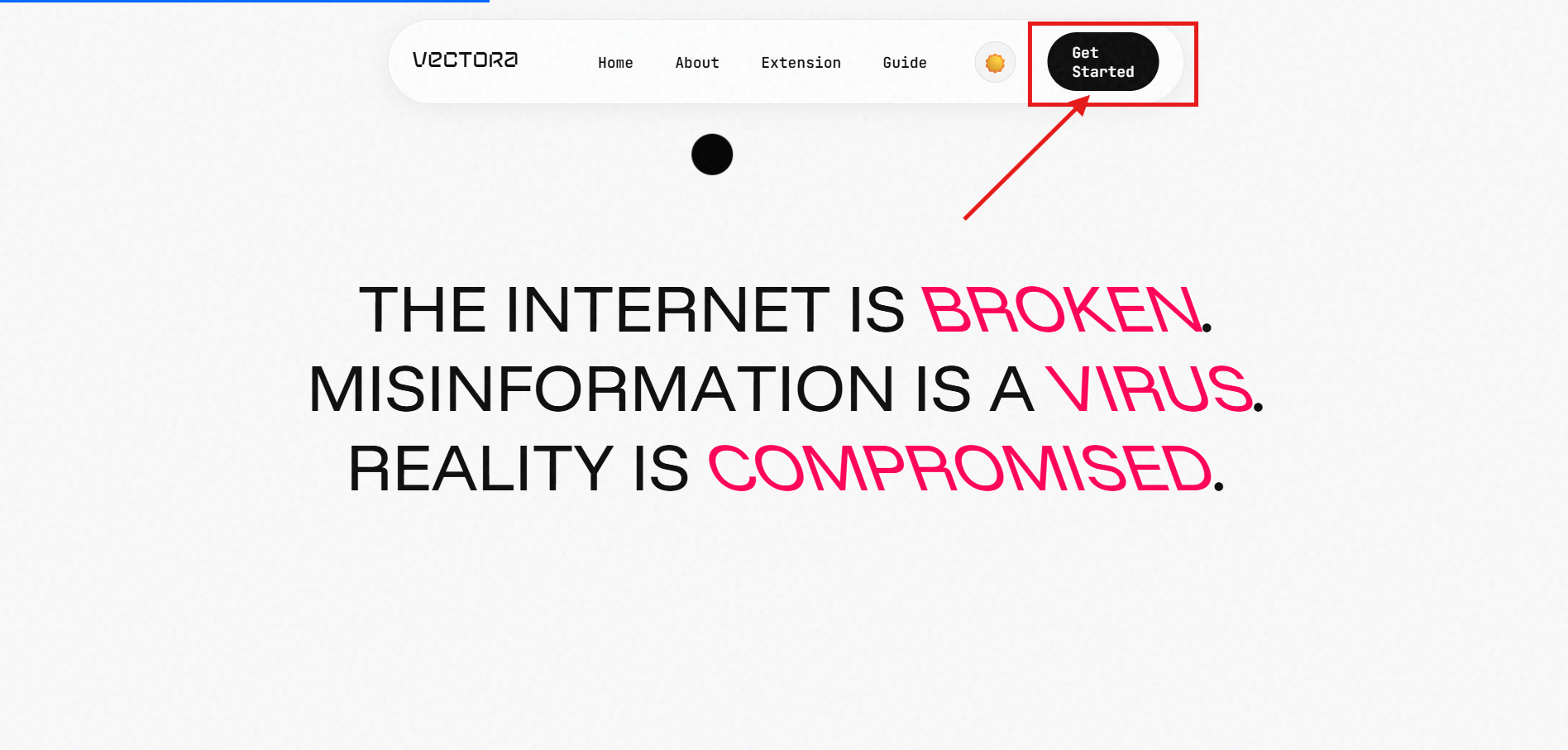
Navigate to the Checker
Click on the "Checker" link in the navigation bar at the top of the page, or
visit
/check directly.
Choose Your AI Provider & Model
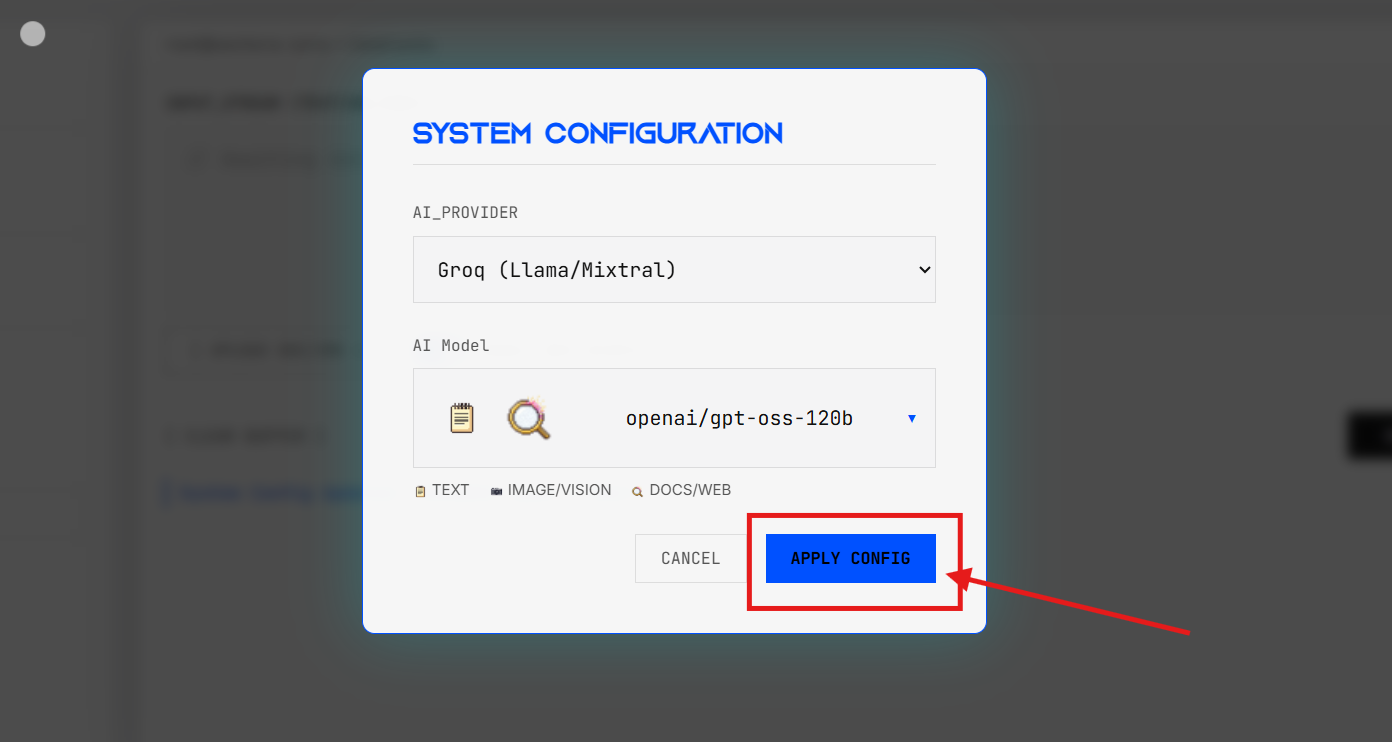
On the left sidebar, you'll see your current configuration. Click the "[ CHANGE CONFIG ]" button to open the settings modal.
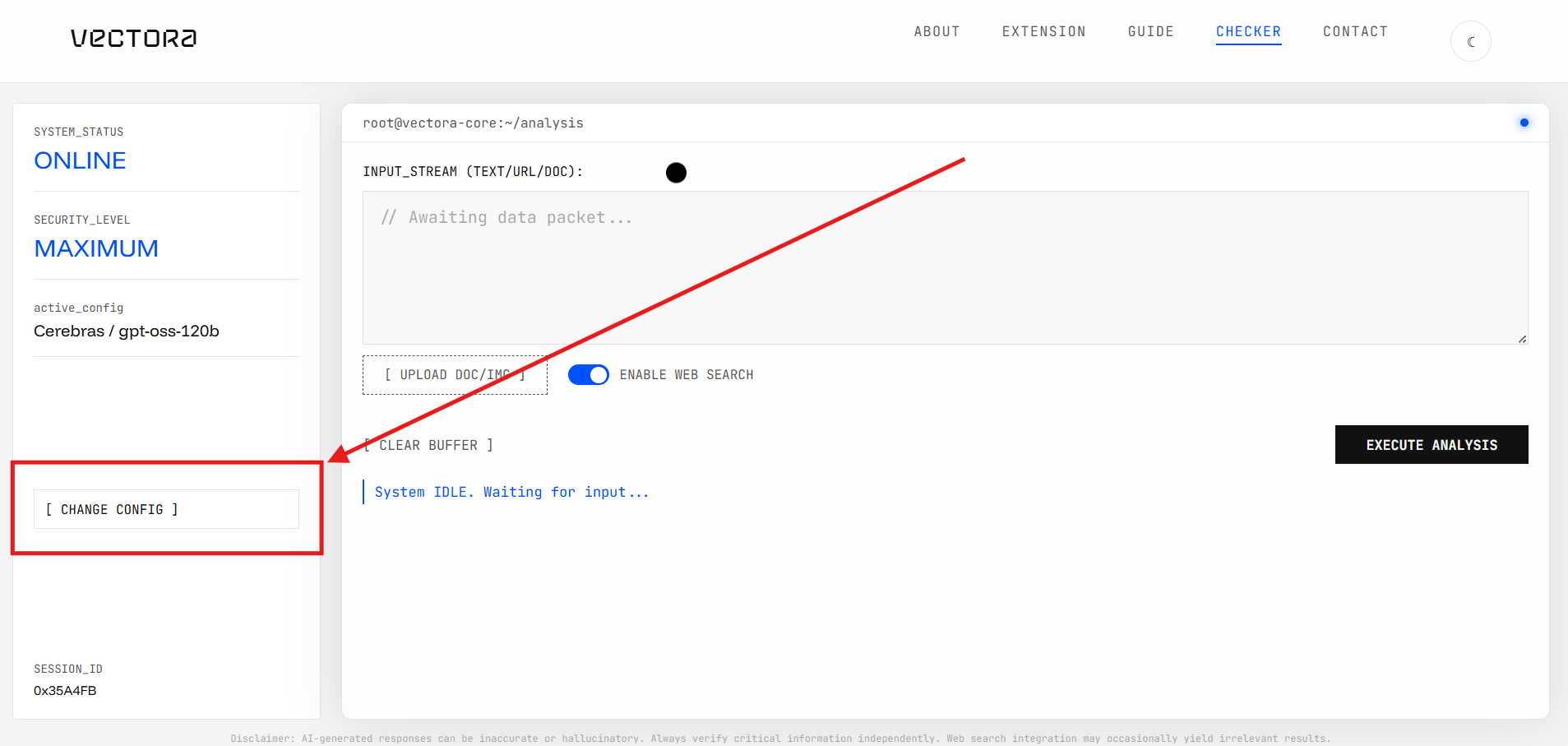
Select Provider in Settings Modal
In the settings modal, use the "AI_PROVIDER" dropdown to choose between:
• Google Gemini - Best for all-purpose analysis
• Groq - Ultra-fast real-time processing
• Cerebras - Specialized for text analysis
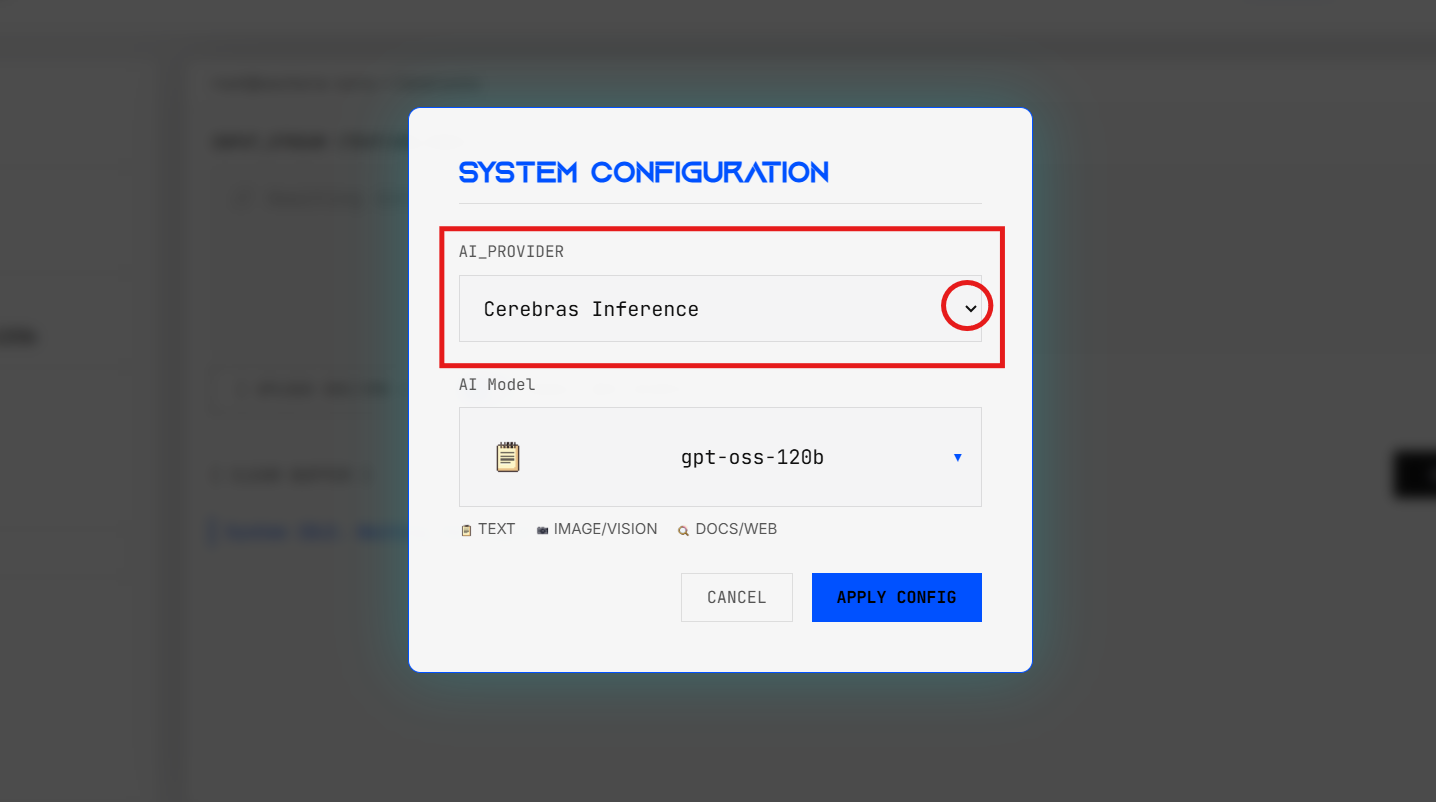
Select AI Model
Click the "AI Model" dropdown to see available models. Each model displays
capability icons:
📝 Text - Can analyze text content
📷 Image/Vision - Can analyze images
🌐 Docs/Web - Can search web and analyze documents
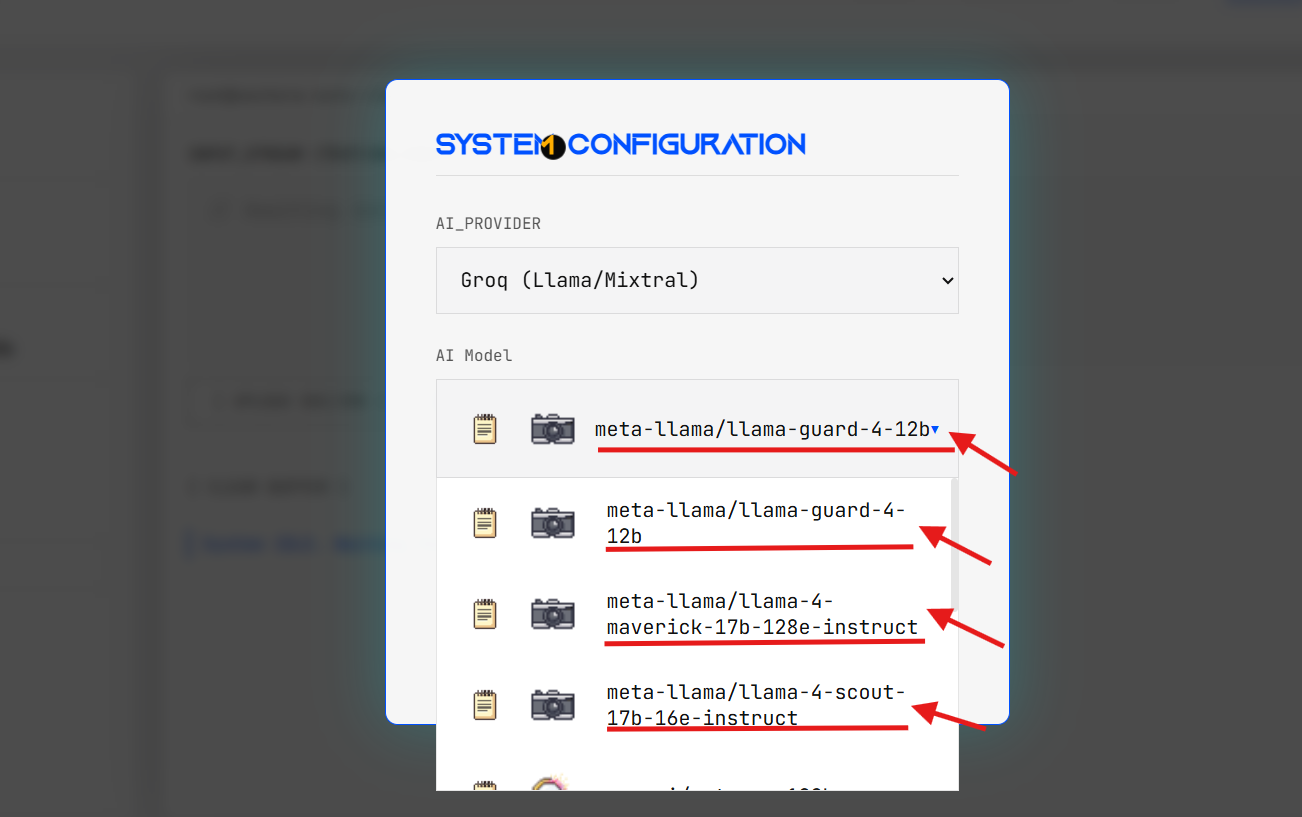
Apply Configuration
After selecting your preferred provider and model, click "APPLY CONFIG" to save your settings. The sidebar will update to show your active configuration.
Input Your Content
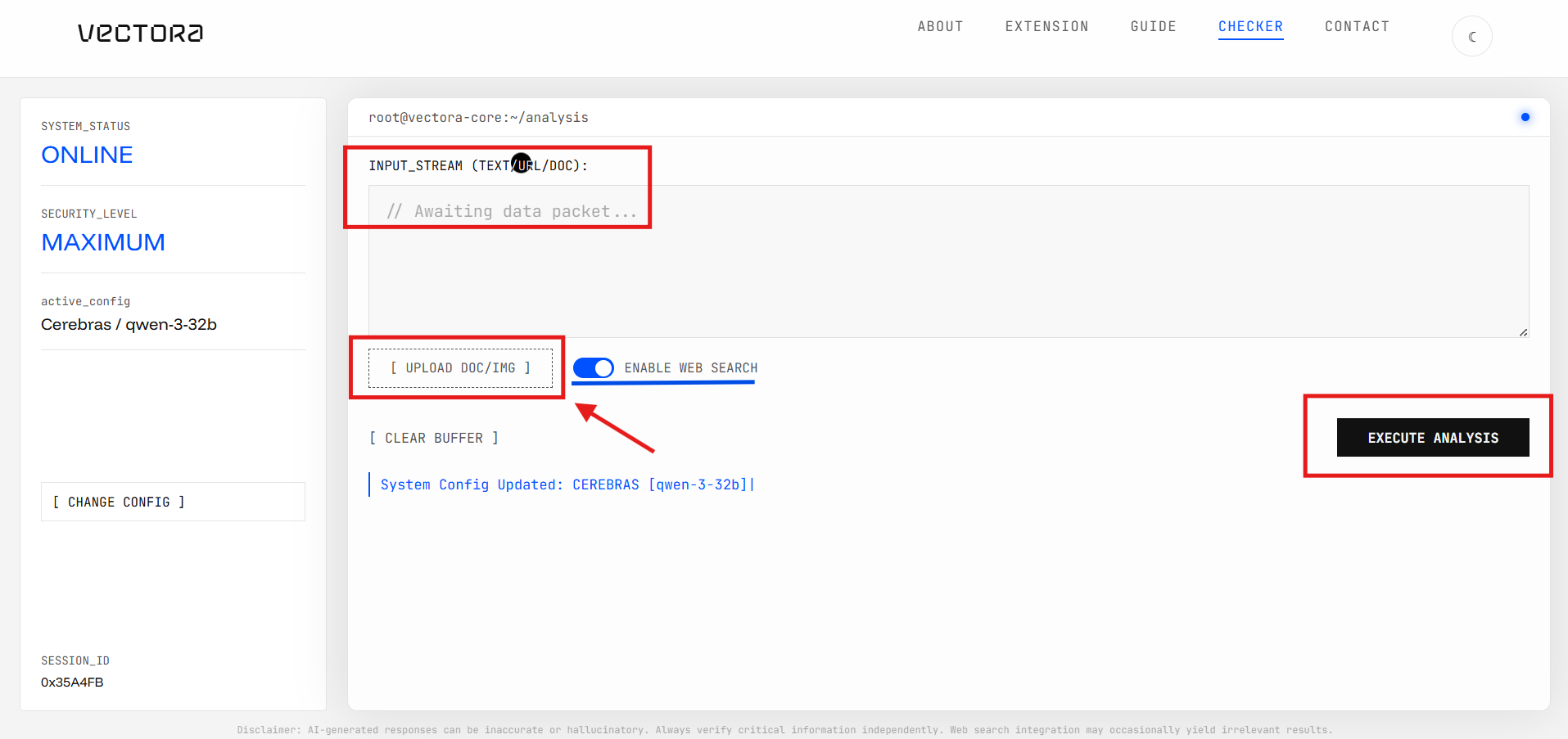
In the main console area, you have three options:
• Text Input: Type or paste text directly into the textarea
• File Upload: Click "[ UPLOAD DOC/IMG ]" to select an image or PDF
• URL: Paste a URL to an image or web page
Configure Web Search (Optional)
Toggle the "ENABLE WEB SEARCH" switch if you want the AI to perform live
fact-checking
against online sources. This is especially useful for verifying claims and detecting
misinformation.
Note: If your selected model doesn't support web search, you'll receive a
warning.
Execute Analysis
Click the "EXECUTE ANALYSIS" button to start the verification process. The
system will:
• Validate your input
• Check model compatibility
• Process your content
• Stream results in real-time
Review Results
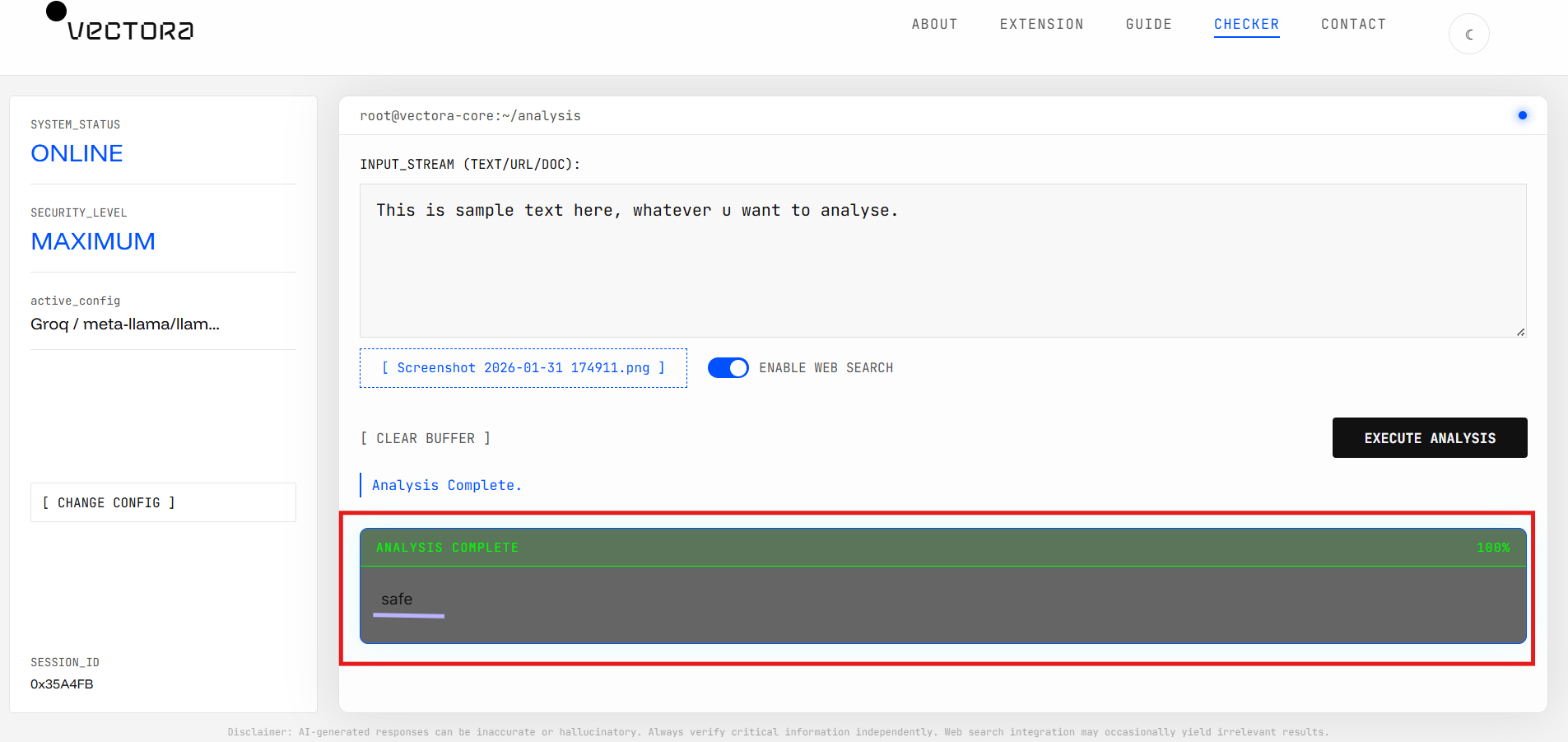
Results appear in an animated HUD (Heads-Up Display) below your input. You'll see:
• AI Probability Score: Percentage likelihood the content is AI-generated
• Detailed Analysis: In-depth reasoning and evidence
• Source Links: References to external verification sources (if web search
enabled)
• SynthID Detection: Digital watermark analysis (Gemini models only)
Clear Buffer (Optional)
To start a new analysis, click "[ CLEAR BUFFER ]" to reset all inputs and results.
Model Capabilities Legend
Understanding the icons you see in the model selection dropdown:
| Icon | Capability | Description |
|---|---|---|
 TEXT
TEXT
|
Text Analysis | Model can analyze and verify text content, including articles, paragraphs, and documents. |
 IMAGE
IMAGE
|
Vision/Image Analysis | Model can analyze images for AI-generation markers, deepfakes, and visual manipulation. |
 WEB
WEB
|
Web Search & Documents | Model can search the web for fact-checking and analyze PDF documents natively. |
Tips & Best Practices
✅ For Best Results
• Provide sufficient context (at least 50-100 words for text analysis)
• Use high-quality images (avoid heavily compressed files)
• Enable web search for fact-checking news and claims
• Try multiple models if you get uncertain results
• Check the status bar for real-time processing updates
🔍 Understanding Results
• Scores above 70% indicate high likelihood of AI generation
• Scores below 30% suggest likely human-created content
• 30-70% range indicates uncertainty - consider context
• Always read the detailed reasoning, not just the score
• Cross-reference with external sources when possible
⚠️ Important Warnings
• AI detection is probabilistic, not definitive proof
• Always verify critical information independently
• Some models show compatibility warnings - heed them!
• External links show a warning modal for your safety
• Results can be inaccurate or hallucinatory - use judgment
Troubleshooting
Common Issues
Q: Why am I getting "MODEL INCOMPATIBLE" error?
A: You're trying to upload an image/PDF with a text-only model. Switch to a model with the 📷 icon (like Gemini 2.0 or Llama Vision).
Q: The analysis is taking too long. What should I do?
A: Try switching to Groq or Cerebras for faster processing. Large files and web search enabled will take longer with Gemini.
Q: My web search results seem irrelevant.
A: Web search works best with Gemini. Other providers may have limited or no web search capabilities. Check the warning message.
Q: What does "NO WEB INTELLIGENCE" warning mean?
A: The selected model cannot access live web data and is limited to its training data. Results may be outdated for recent events.
Q: Can I analyze multiple files at once?
A: Currently, VECTORA processes one file at a time. Clear the buffer between analyses using "[ CLEAR BUFFER ]".